RWECS: Race Walking Electronic Control System
“The Chip”
Elite race walkers, coaches, fans, and other stakeholders have consistently called for a system that judges all athletes objectively and consistently, and that evaluates every step throughout a race. RWECS is a breakthrough technology for race walking that measures the duration of any loss of contact between a race walker and the ground. It does not evaluate the bent-knee rule.
What is RWECS
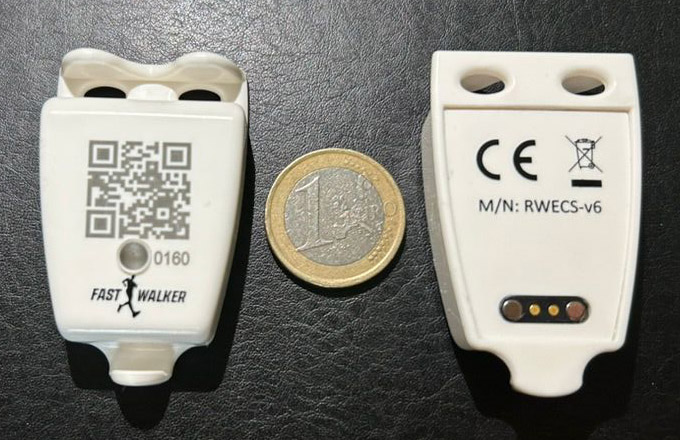
Specifications (v6.0)
- No Insole / No cables
- Weight: < 15 g
- Size: 53mm x 32mm
- Memory: 2 Mbits – 40000 leg cycles (80000 steps)
- Battery life (capacity 120 mAh)
- Standby > 30 days
- Deep Sleep > 1 year
- USB to Magnetic 2-pin charger
- Bluetooth 5.2
- IP65 waterproof (ABS plastic)
Ordering the Chip

We are currently accepting preorders for the next batch of chips. These chips are still prototypes, but will work perfectly for training. We estimate shipping these chips in July, 2026. This batch of chips is a limited run of under 800 units. Our first batch sold out quickly—don’t miss out and preorder your devices today.
Please note, shipping internationally is expensive. If you can gather a group of athletes together and order 10 chips (5 athletes), we will cover the shipping costs.
For more details on shipping, please visit our fulfillment site at: lioness.global
Charging
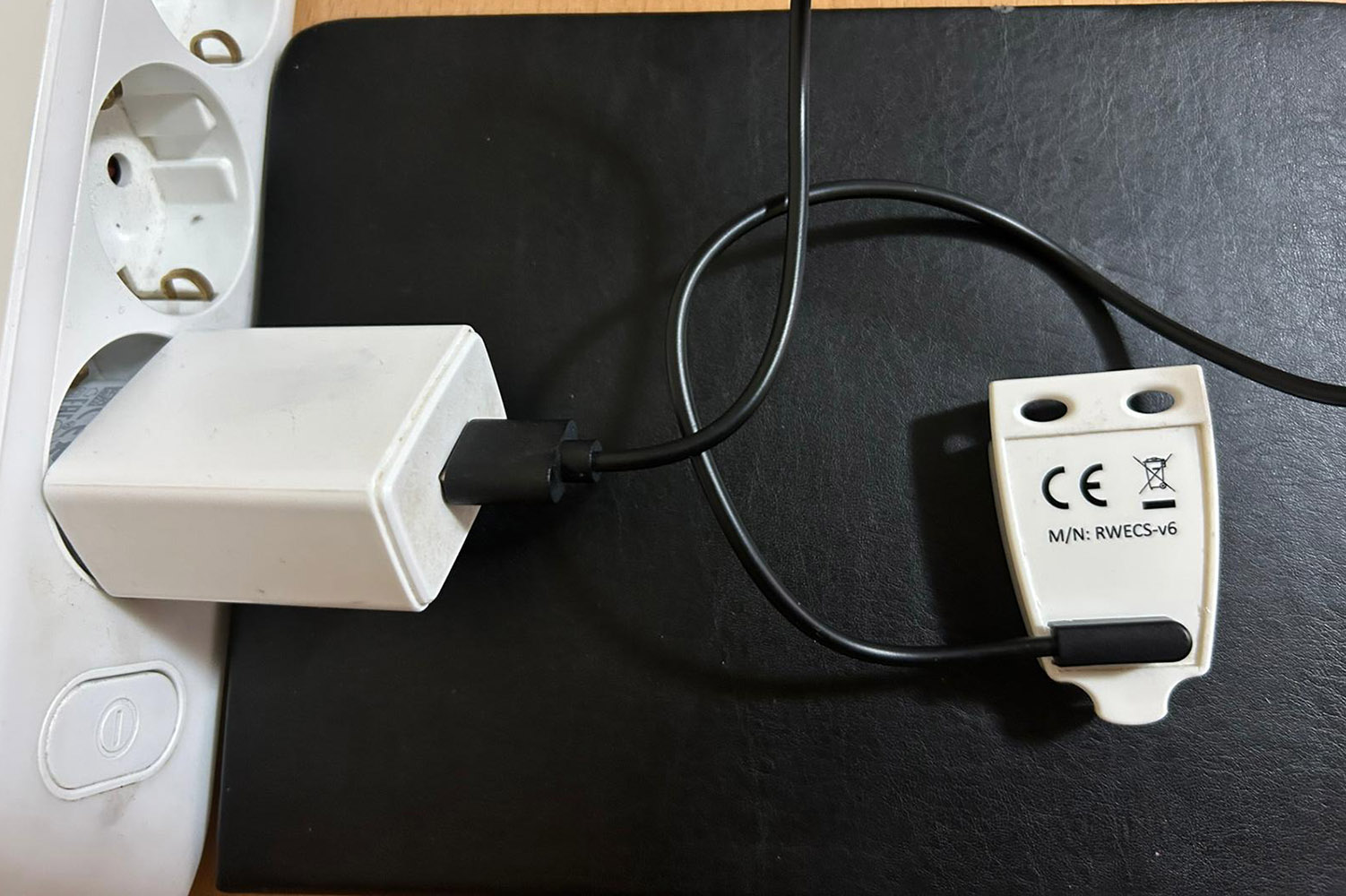
Charging your RWECS chip is simple. Use only the cable provided with the device—do not use other cables. One end of the cable has a standard USB-A connector; plug this into a wall charger. The other end is a magnetic 2.8 mm POGO adapter. Align and place this connector onto the chip’s charging. Allow the chip to charge for approximately 6 hours to ensure it is fully charged.
Use a high-quality, 5V USB charger.
If you are unsure of how much charge is in the device, connect the device to the iOS or Android app.
What do the LED colors mean?
| State | LED | Notes |
|---|---|---|
| Sleep | 1 CYAN blink every 6s | Low Power. Battery lasts 2 weeks |
| Sleep (Low Battery) | 1 RED blink every 6s | Recharge the device |
| Idle | 1 GREEN blink every 2s | Waiting to receive connection over BLE (Bluetooth) |
| Charging | 1 YELLOW blink every 6s | Charging in progress |
| Connected | 1 BLUE blink every 2s | The device is connected to the App |
| Training | 1 MAGENTA blink every 1s | Measuring flight time, step by step |
| Competition (connected) | 2 MAGENTA blinks very 2s | Race Recording in device memory |
| Competition (Disconnected) | 2 GREEN blinks every 2s | Race recording in device memory |
| Mem Read | 1 WHITE blink every 2s | Memory reading |
| Protocol Error | 1 RED blink every 1s | An unexpected command was received |
| Hardware Error | (1 to 6) RED blinks every 5s | Hardware Error |
Attaching RWECS to Your Shoes
Position the chip on the shoelaces with the widest part facing upward, as high as possible (i.e., closest to the ankle). Ensure the chip is straight and properly aligned with the shoe tongue and the laces.
Monitoring Applications
iOS Application
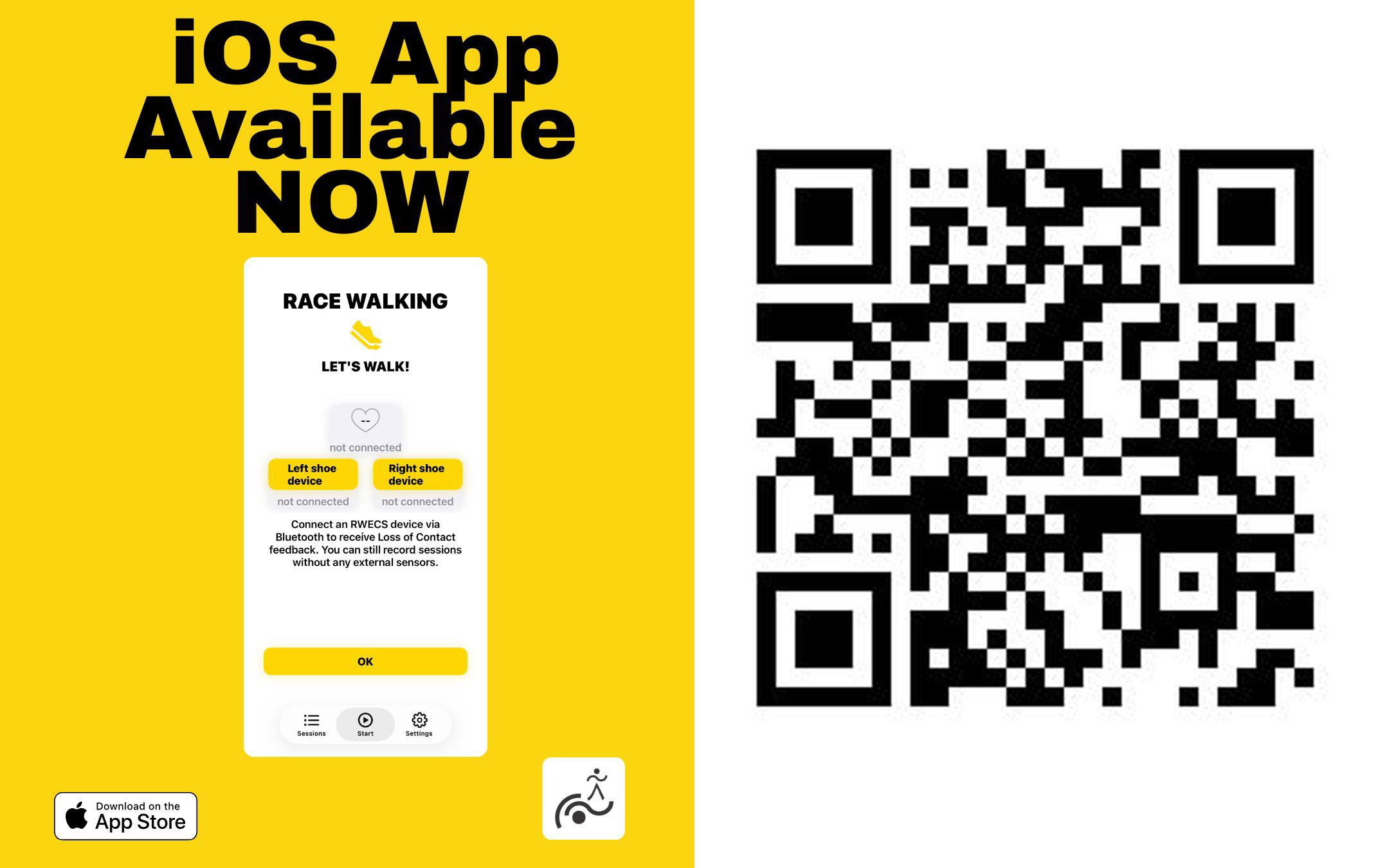
https://apps.apple.com/us/app/rwecs/id6747927317
For use with iPhone, iPad and Apple Watch!
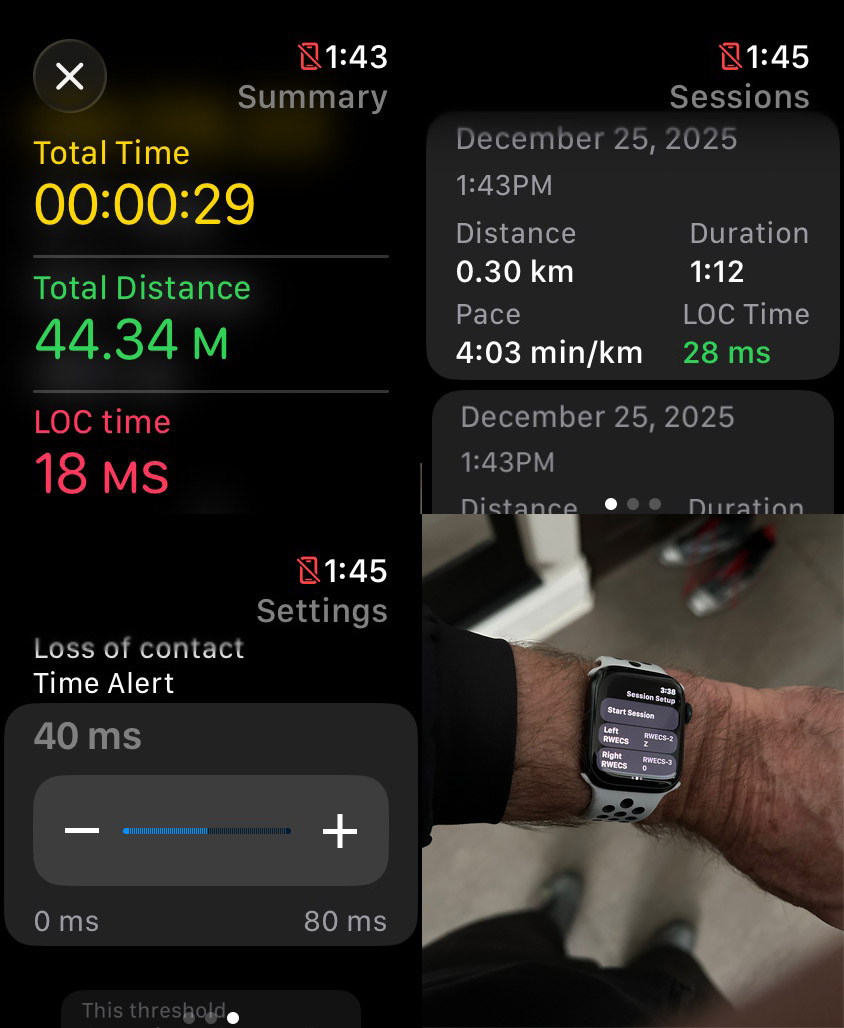
This App can be used with the RWECS chips to monitor the loss of contact in your training.
You can download the quick start guide by clicking on this PDF Document
RWECS Garmin — Quick User Manual
You can download the app from the Garmin app store here.
- What this app does RWECS connects your Garmin watch to up to two RWECS shoe sensors (Left/Right), shows live LOC metrics during activity, gives alert feedback, and saves workout results to Garmin activity data.
- Before you start Wear and power on your RWECS sensors. Open the RWECS app on your watch. Keep the watch close to your sensors during pairing. Optional: check GPS quality on the home screen (GPS: ...) before starting.
- Pair sensors (Left/Right) On the RWECS home screen, press SELECT. Choose Left Shoe or Right Shoe. Wait for scan results, highlight your sensor, press SELECT to assign. Repeat for the other shoe if needed. To remove a pairing, use Clear Left / Clear Right. Note: Some watches may only allow one BLE slot for this app session; assigning one side can remove the other.
- Start and run a workout Press SELECT → Start Activity. Main screen shows: Elapsed time Heart rate Left/Right current LOC Distance Connection dots (green/red) During workout: BACK/LAP creates a split and shows a lap summary. START/ENTER opens pause menu (Resume, Save, Discard). Swipe/page down to open secondary metrics page (if Pro enabled).
- End workout Press START/ENTER → choose: Save to store activity and results Discard to cancel without saving After save, a results screen appears (time, distance, HR, pace, LOC averages, warnings). Press SELECT or BACK to return home.
- Settings From home: SELECT → Settings Alert threshold (ms) Activity type (Walk / Run) Force tap split gesture on/off and trigger level Some settings/features require Pro subscription.
- Subscription (Pro) From home: SELECT → Subscription Sync with phone to refresh entitlement Subscription guide for setup help Link: https://rwecs.app/garmin-pro.html 😎 Tips If no devices appear while assigning, wait on the scan page for a few seconds and ensure sensor is awake. If LOC stays --, verify sensor connection dots and sensor battery/state. For best results, start activity after sensor assignment and stable GPS. rwecs.app
Android Application
Coming soon!
Frequently Asked Questions
Why aren’t there any lights flashing on the chip?
The chip could be in deep sleep mode, and you need to connect it to the charger to wake it up.
How do you know the battery is 100% charged when connected to the charger and how long does it take?
The battery usually takes around 6 hours to charge 100%, when it is less than 5%. When charging and it reaches 100% charge the light will stop flashing yellow and will flash cyan.
What do I do if the light on the chip isn’t flashing at all?
It’s in deep sleep mode. Connect to a charger and disconnect two times to wake it up. Charge it overnight.
How do I know how much charge is left in the battery?
Connect the chip to the App and it will be displayed on the screen once connected.
It was saying on the App it wasn’t connected but it was connected according to the light flashing blue, what can I do?
Be sure you don’t have other devices connected to the device. Kill the RWECS control programs
How do I know if the chips are connected correctly?
The app should show when the chips connect and also the LED light on the chip flashes in blue
What if the chips fail to send data during a competition? Can we retrieve the data post-race?
In Competition Mode the chips store all the data in the internal memory and could be downloaded and displayed afterwards. In Race mode data is not stored on the chip.
How can we get technical assistance?
Email racewalkchip@gmail.com and we will respond as soon as possible.
Is it possible to get more detailed information about the stored sessions on the chip?
After downloading all the chip data you could display and analyse the stored sessions with the Analytics tool in https:\rewecs.eu
Can we get raw data?
It is possible with the Android RW Trainer App to acquire up to 3 seconds of two axis acceleration raw data. See the user manual for more information. The speed is limited by the smartphone BLE characteristics.
Coming Soon: Competition System
Windows / Linux Competition System
Contact Us
Do not hesitate to contact us at racewalkchip@gmail.com